If you are looking for the absolute smoothest, most cable-like viewing experience on Firestick or Android TV, nothing comes close to TiviMate IPTV Player. While free players get the job done, completing a proper tivimate premium setup unlocks a polished television interface with lightning-fast channel switching, seamless electronic program guides (EPG), scheduled recording, and multi-screen viewing.
In this beginner-friendly 2026 guide, we walk you through the complete tivimate premium setup process step-by-step. You will learn how to install the app on your streaming device, unlock lifetime premium access via the companion utility, connect your VLOXTV 4K IPTV subscription, and configure your settings for buffer-free live sports.
Why You Need a TiviMate Premium Setup for 4K Streaming
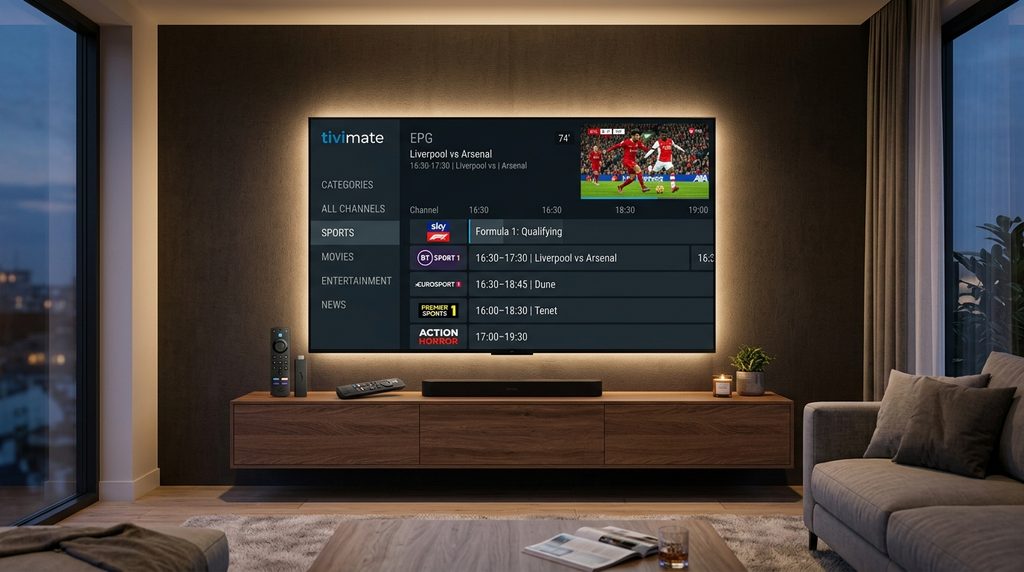
The standard free version of TiviMate lets you add a single playlist, but it locks all the advanced capabilities that make the player famous. Upgrading to a tivimate premium setup provides access to power-user features that transform your home entertainment:
- Multiple Playlists: Manage backup servers and separate international channel bouquets simultaneously.
- Multi-View Screen (Up to 9 Channels): Watch up to 9 live sports games on a single screen—a must-have for NFL Sundays, Premier League matchdays, and UFC fight cards.
- Full Catch-Up & Cloud DVR: Rewind live television and record upcoming shows directly to internal storage, USB drives, or local network-attached storage (SMB).
- Customizable TV Guide (EPG): Synchronize multi-source TV schedules and automatically assign missing logos and channel information.
- Fast Channel Zapping: Experience zero delay when browsing between 4K and FHD channels.
If you previously followed our guide on how to install IPTV on Firestick, transitioning to TiviMate will feel like upgrading from standard definition to theater-quality luxury.
Table of Contents
What You Need Before Starting
Before diving into the setup, prepare the following items:
- A Compatible Streaming Device: Amazon Fire TV Stick (4K, 4K Max, or Cube), Chromecast with Google TV, NVIDIA Shield TV, or any smart Android TV.
- Active Premium Credentials: A high-speed subscription from a reliable provider like VLOXTV, including your Xtream Codes API server URL, username, and password.
- An Android Phone or Google Account: Required to purchase the premium license through Google Play or the official TiviMate Companion app.
- Stable Internet Connection: At least 30 Mbps download speed connected via 5GHz Wi-Fi or Ethernet.
Step 1: Install TiviMate on Firestick or Android TV
Because TiviMate is designed natively for Android TV, installation differs slightly depending on your device hardware.
For Android TV & Google TV:
- Open the official Google Play Store on your television.
- Search for TiviMate IPTV Player.
- Click Install.
For Amazon Firestick / Fire TV (Sideload Method):
Because Amazon uses its proprietary Fire OS Appstore, you must sideload the application using the trusted Downloader tool by AFTVnews:
- Go to Settings > My Fire TV > Developer Options and enable Install Unknown Apps for Downloader. (If Developer Options is hidden, go to About and click your Fire TV model name 7 times).
- Open Downloader, click the search URL box, and type Downloader code 272483 (or enter the official download URL:
https://tivimate.com/apk). - Click Go to download the official APK file.
- When prompted, click Install, then click Done.
- Delete the installation file to keep your Firestick storage clean. If you ever experience sluggish menus, you can easily clear cache on Firestick to restore peak system speed.
Step 2: Unlock TiviMate Premium via TiviMate Companion
To activate the premium tier on your streaming device, you need to register a TiviMate account. Premium costs approximately $9.99/year or $34.99 for a one-time lifetime license, covering up to 5 devices simultaneously.
Here is the exact method to unlock your license:
- On an Android Phone or Tablet: Open Google Play Store and install the official TiviMate Companion App.
(Note: If you only own Apple iOS devices or a Mac/PC, you can run the companion app through a free Android emulator like BlueStacks on your computer). - Open the Companion app and click Account > Sign Up.
- Enter your email address and create a secure password.
- Select your preferred subscription model (1-Year or Lifetime) and complete the secure Google Play checkout.
- Once your order is verified, keep your email and password ready for the next step.
Step 3: Step-by-Step TiviMate Premium Setup on Firestick & Android TV
With the software installed and your license active, open the app on your television to finalize your tivimate premium setup:
Activate Your Premium License in the App:
- Launch TiviMate on your Firestick or TV.
- Scroll down on the left navigation sidebar and click Settings (Gear Icon).
- Select Unlock Premium and review the list of unlocked features.
- Click Next, then select Account.
- Enter the exact email address and password you registered in the TiviMate Companion app.
- Choose a device name (e.g., Living Room Firestick) and click Activate Device.
- You will see a green confirmation screen: “Congratulations! All Premium features are now unlocked.”
Add Your VLOXTV Subscription (Xtream Codes API):
Now it is time to load your live channels, pay-per-view networks, and video on demand:
- Under Settings, select Playlists > Add Playlist.
- Select Xtream Codes (recommended over M3U playlist because it automatically manages channel categories, catch-up, and EPG schedules).
- Enter your subscription details provided by VLOXTV:
- Server URL: Enter your provider address (e.g.,
http://server-url.net:8080). - Username: Your assigned subscriber username.
- Password: Your assigned subscriber password.
- Server URL: Enter your provider address (e.g.,
- Check the box that says Include TV Channels and Include VOD.
- Click Next. TiviMate will process your channel list, download channel logos, and sync your Electronic Program Guide.
- Click Done to open your TV dashboard.
Step 4: Configure EPG (TV Guide) & Playback Settings
To make sure your tivimate premium setup delivers crystal-clear 4K sports with zero stutter, fine-tune these essential preferences:
1. Optimize Stream Buffer Size
If you encounter brief pauses during live events:
- Go to Settings > Playback.
- Set Buffer size to Large or Very Large. This allows TiviMate to pre-load several seconds of video into memory, smoothing out any minor Wi-Fi jitter.
2. Auto-Update TV Guide (EPG)
Keep your live schedule completely accurate:
- Go to Settings > EPG > EPG sources.
- Turn on Update on app start and toggle Update intervals to Every 24 hours.
3. Enable Audio Passthrough & Hardware Decoder
- Inside Settings > Playback, verify that Video decoder is set to Hardware. This forces your Firestick or TV processor to render 4K HDR streams at 60 frames per second without overheating.
Frequently Asked Questions (FAQ)
Can I complete a TiviMate Premium setup on Firestick without an Android device?
Yes. If you do not have an Android smartphone, you can install an Android emulator such as BlueStacks or NoxPlayer on your Windows PC or Mac. From there, open the Google Play Store, install the TiviMate Companion app, purchase your license, and use those login credentials directly on your Firestick.
How many TVs can I use with one TiviMate Premium license?
A single TiviMate Premium account allows up to 5 devices active at the same time. You can easily view, rename, or revoke active devices anytime inside the TiviMate Companion dashboard.
Does TiviMate include live channels and movies?
No. TiviMate is an IPTV media player, not a content distributor. It requires an active M3U playlist or Xtream Codes subscription from a verified, premium provider like VLOXTV to watch live channels.
Why does TiviMate show “Error 401” or “DataSourceException”?
This typically indicates either an expired subscription, a mistyped server URL, or an active connection limit reached. Double-check your username and password, or message your VLOXTV support agent on WhatsApp for instant credential verification.
Final Thoughts
A proper tivimate premium setup provides the gold standard in modern IPTV streaming. With its snappy, cable-grade TV guide, multi-screen sports tracking, and robust EPG synchronization, you get the ultimate home entertainment hub for a fraction of traditional cable costs.
Ready to pair your new TiviMate setup with high-speed 4K streams? Visit VLOXTV today, choose your plan, and get instant Xtream Codes credentials directly via WhatsApp!