If your live channels have started stuttering, crashing back to the home screen, or taking 15 seconds to switch bouquets, you are likely wondering how to clear cache on firestick for iptv. Amazon Fire TV Sticks—including the Fire TV Stick 4K, 4K Max, and Lite—are phenomenal budget streaming devices, but they have one glaring hardware limitation: strictly limited internal RAM and flash storage.
Every time you browse live sports, scroll through video-on-demand (VOD) movie posters, or buffer live Full HD streams on apps like TiviMate, IPTV Smarters Pro, or XCIPTV, temporary video chunk files and image thumbnails accumulate in the background. Over weeks of daily viewing, this cached data bloats to several gigabytes, choking your Firestick’s memory and causing sudden freezing.
In this 2026 walkthrough, you will learn the exact 5-step procedure on how to clear cache on firestick for iptv safely without losing your playlist credentials or custom settings.
What Is App Cache and Why Does It Slow Down IPTV?
Application cache is temporary storage designed to help apps load faster. For example, when you launch your IPTV player, it saves channel logos and program guide icons locally so it does not have to re-download them every time you change channels.
However, video streaming apps differ from regular applications:
- Video Fragment Accumulation: Live streams download temporary video segments that fail to purge automatically when you switch channels.
- RAM Exhaustion: The standard Fire TV Stick has only 1.5 GB to 2 GB of RAM. When the cache is full, background services crash.
- Out of Storage Warnings: Firesticks ship with only 8 GB of internal storage (with barely 5 GB usable). A swollen cache triggers system-wide throttling.
Understanding how to clear cache on firestick for iptv frees up vital processing power and restores silky-smooth 60fps live sports playback.
How to Clear Cache on Firestick for IPTV: Step-by-Step Tutorial
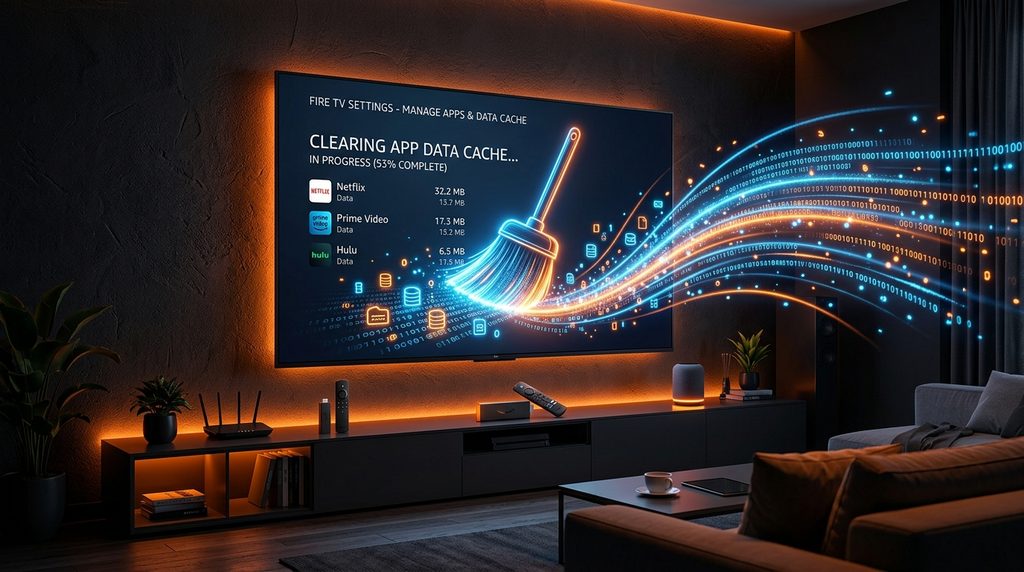
Follow these 5 proven steps to safely purge temporary app files on any Fire OS device.
Step 1: Open Firestick Settings
- Turn on your television and go to your Firestick Home screen.
- Using your remote control, navigate to the far right of the navigation bar and select the Settings icon (Gear ⚙️).
Step 2: Navigate to Applications
- In the Settings grid, scroll down and click on Applications.
- Scroll to the bottom of the Applications menu and select Manage Installed Applications.
Note: This menu lists every single application currently installed on your Amazon device, along with the exact storage space it occupies.
Step 3: Select Your IPTV Player Application
Scroll through the alphabetical list to find your media player:
- TiviMate
- IPTV Smarters Pro
- XCIPTV
- OTT Navigator
Click on your player using the center Select button on your remote. You will see detailed memory metrics on the right side of your screen: Size, Data, and Cache. On actively used streaming setups, the cache often exceeds 800 MB to 1.5 GB!
Table of Contents
Step 4: Click “Clear Cache” (Critical Warning)
On the application management screen, you will see two similar options:
- Clear Data
- Clear Cache
⚠️ CRITICAL WARNING: Always click Clear Cache.
DO NOT click “Clear Data” unless you want to wipe your entire application back to factory default. Clicking Clear Data will delete your playlist URL, Xtream Codes login, favorites list, and channel settings. Clicking Clear Cache deletes ONLY junk temporary files while keeping your account 100% intact!
Click Clear Cache. You will notice the Cache counter instantly drop to 0 B (or a few kilobytes).
Step 5: Force Stop and Restart Your Firestick
To complete the memory cleanup:
- On that same screen, click Force Stop. This terminates any frozen background video threads.
- Repeat this process for other heavy streaming apps (such as Downloader, YouTube, or Netflix) to reclaim maximum storage.
- Finally, perform a clean hardware reboot as detailed in official Amazon Fire TV device management documentation: hold down the Select (Center) button and the Play/Pause button together for 5 seconds until the device restarts.
Bonus Tips to Keep Your Firestick Fast for 4K Streaming
Once you have mastered how to clear cache on firestick for iptv, implement these three routine maintenance habits to prevent future stuttering:
1. Clear Downloader APK Files
If you configured your device following our step-by-step Firestick IPTV installation guide, you likely downloaded APK installation files using Downloader. Open the Downloader app, select the Files tab on the left, and delete all .apk installers to free up hundreds of megabytes.
2. Verify Real Bandwidth and Jitter
After clearing cache, open the Silk Browser on your Fire TV and run an Ookla online speed test. Ensure your connection delivers at least 30 Mbps with less than 15ms jitter for buffer-free 4K playback.
3. Check for OS Firmware Updates
Amazon frequently pushes background performance patches. Check the AFTVnews Fire TV technical platform for Fire OS changelogs, and go to Settings > My Fire TV > About > Check for Updates.
What If Streams Still Buffer After Clearing Cache?
If you successfully completed the tutorial on how to clear cache on firestick for iptv and your device has over 2 GB of free storage, but live sports channels still stutter during prime time, the root bottleneck is not your Firestick hardware—it is your provider’s streaming infrastructure.
Oversold budget providers host thousands of customers on sluggish 100 Mbps nodes. When marquee Premier League, NFL, or Champions League games start, their servers buckle under load.
Upgrading to an anti-freeze tier like the VloxTV high-bandwidth IPTV streaming subscription guarantees dedicated 1 Gbps server nodes, true 60fps high-bitrate video, 99.9% uptime, and zero prime-time freezing on all Fire TV models.
Frequently Asked Questions (FAQ)
How often should I clear cache on Firestick for IPTV?
For active daily viewers, we recommend clearing your IPTV player’s cache once every two to three weeks, or immediately before watching major live pay-per-view sports events.
Will clearing cache delete my IPTV channels or favorites?
No. Clicking Clear Cache only purges temporary video packets and downloaded image thumbnails. Your login credentials, channel categories, and custom favorites will remain completely untouched.
Why does my Firestick cache fill up so fast when streaming?
Live IPTV streams in high-definition 1080p and 4K at 60 frames per second. Video players cache stream segments in advance to absorb network fluctuations, which rapidly fills up flash memory over long viewing sessions.
Can I clear cache for all Firestick apps at once?
Amazon Fire OS does not feature a single native “clear all cache” button. You must clear the cache individually for each app under Manage Installed Applications, or install a trusted cleanup utility.
Final Thoughts
Knowing how to clear cache on firestick for iptv is an essential maintenance skill for every cord-cutter. In just under two minutes, you can eliminate memory bloat, prevent app crashes, and restore seamless live sports streaming on any television in your home.
Ready for high-speed, anti-freeze streaming that never lets you down during big games? Check out VloxTV Plans & Instant 24/7 Activation or reach out to our team on WhatsApp for immediate setup support!