The Amazon Firestick is hands down the most popular streaming device in the United States. It is affordable, portable, and packs enough hardware power to handle 4K streaming effortlessly. However, if you are relying solely on traditional cable packages or juggling half a dozen expensive streaming apps, you are likely overpaying for entertainment you barely watch.
That is where IPTV comes in. By pairing your Firestick with a high-quality IPTV subscription, you unlock thousands of live channels, pay-per-view events, regional sports networks, and vast video-on-demand (VOD) libraries—all through a single, easy-to-use interface.
In this beginner-friendly tutorial, we walk you through the exact, step-by-step process of how to install IPTV on Firestick in 2026. Whether you have a Fire TV Stick Lite, Firestick 4K Max, or Fire TV Cube, this guide will have you streaming live TV in under 10 minutes.
What You Need Before You Start
Before diving into the setup, make sure you have the following ready:
The Downloader app by AFTVnews is the standard utility for official Amazon Fire TV devices. Learning how to install IPTV on Firestick begins with setting up this trusted utility.
- An Amazon Firestick or Fire TV device: Plugged into your TV and connected to stable high-speed Wi-Fi (at least 25–30 Mbps for smooth 4K/Full HD playback).
- An active IPTV subscription: To load and watch live channels, you need active credentials (Xtream Codes API username/password or an M3U playlist URL) from a reliable provider like VLOXTV.
- Your Firestick remote control.
Step 1: Enable “Apps from Unknown Sources” on Firestick
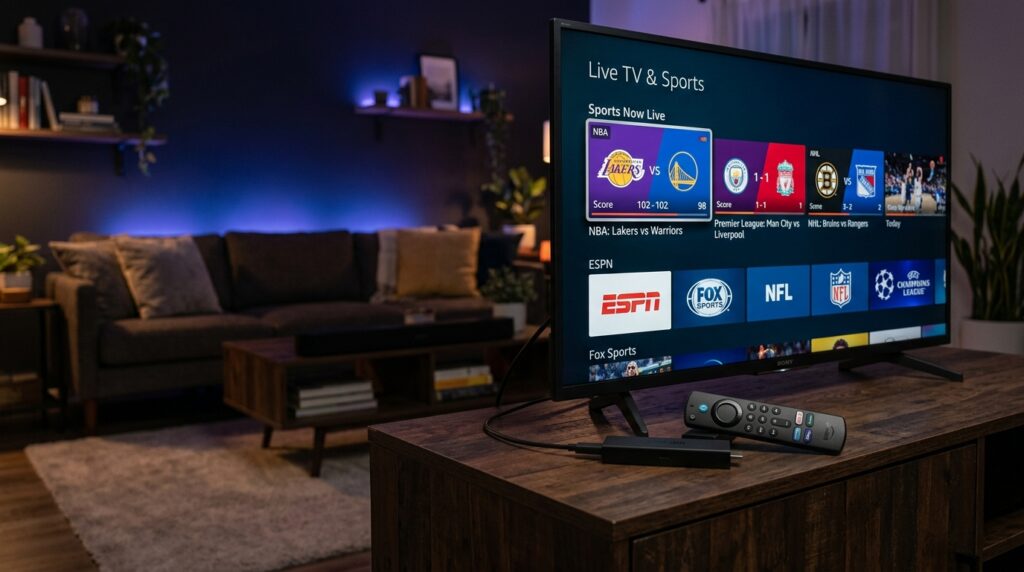
Because dedicated IPTV players (such as IPTV Smarters Pro, XCIPTV, or TiviMate) are third-party media players, they are not hosted directly on the default Amazon Appstore. You need to enable permission on your Firestick to sideload them safely.
Here is how to do it:
- Turn on your Firestick and go to Settings (the gear icon on the far right of the home menu).
- Scroll down and click on My Fire TV.
- Select Developer Options.
Note for Newer Firestick Updates (Fire OS 7 & 8):
If you do not see Developer Options listed under My Fire TV, Amazon has hidden it by default. To unlock it:
- Go to Settings > My Fire TV > About.
- Highlight the first item (e.g., Fire TV Stick 4K) and click the Select button on your remote 7 times rapidly.
- You will see a notification at the bottom: “No need, you are already a developer.”
- Press the back button, and Developer Options will now appear!
- Inside Developer Options, select Install unknown apps (or Apps from Unknown Sources) and turn it ON.
Step 2: Install the Downloader App from the Amazon Appstore
The Downloader app by AFTVnews is the standard, trusted utility used to download and install third-party apps directly onto Fire TV devices.
- Return to your Firestick Home screen.
- Click on the Find tab and select the Search tile.
- Type Downloader using the on-screen keyboard.
- Select the orange Downloader app from the search results.
- Click Download or Get to install the app.
- Once installed, click Open.
- When prompted, click Allow to give Downloader permission to access media files on your device. Click OK on the welcome popup.
Step 3: How to Install IPTV on Firestick Using Downloader
Now that Downloader is installed, you need a player application to play your IPTV stream. The most popular, intuitive, and feature-rich player for Firestick is IPTV Smarters Pro.
Here is how to install it using Downloader:
- Open the Downloader app.
- In the URL / Search term box on the home screen, click the input field.
- Simply enter the quick Downloader short code:
👉250931 - Click Go. The app file (APK) will immediately begin downloading.
- Once the download finishes, a prompt will automatically appear. Click Install.
- When the installation completes, click Done.
- A prompt will ask if you want to delete the installation file. Click Delete, and then click Delete again. (This saves valuable storage space on your Firestick).
Step 4: Configure Your IPTV Subscription
Now it is time to load your live channels, sports packages, and movies into the player.
- Press and hold the Home button on your Firestick remote, then select Apps.
- Scroll to the bottom to find IPTV Smarters Pro and open it.
- Choose your device layout (TV) and click Save.
- Accept the terms of use.
- You will see several login options. The recommended method is “Login with Xtream Codes API”.
Logging in via Xtream Codes API (Recommended):
Click on Login with Xtream Codes API and enter the credentials provided by your IPTV service provider:
- Any Name: Type a nickname for your service (for example: VLOXTV).
- Username: Enter your assigned subscription username.
- Password: Enter your assigned subscription password.
- Server URL: Enter the provider’s server URL (e.g.,
http://server-address.com:8080).
Click Add User. The app will take 10 to 30 seconds to fetch your channel bouquets, EPG (electronic TV guide), and on-demand movies.
Once configured, your complete setup for how to install IPTV on Firestick is finished, and all channels will load instantly.
Need a Reliable IPTV Subscription for Firestick?
If you don’t have an active service yet or are tired of freezing streams during live sports, check out VLOXTV Plans & Pricing. With over 10,000+ live channels in 4K/FHD, dedicated US sports servers, and instant WhatsApp setup assistance, you get seamless, buffer-free entertainment on your Firestick.
Step 5: Optimize Firestick for Buffer-Free Streaming
To ensure smooth, uninterrupted playback during live NFL, Premier League, NBA, or UFC broadcasts, follow these essential optimization tips:
1. Connect to 5GHz Wi-Fi (or use an Ethernet Adapter)
Standard 2.4GHz Wi-Fi is prone to interference from household appliances and walls. If your router supports dual-band, connect your Firestick to the 5GHz network band, or use an Amazon Ethernet adapter for a direct cable connection.
2. Clear App Cache Regularly
Over time, video players store temporary cache data that can slow down your Firestick.
- Go to Settings > Applications > Manage Installed Applications.
- Select your IPTV player and click Clear Cache (do not click Clear Data, as this will reset your login).
3. Change Player Stream Format
Inside your IPTV player settings (Settings > Stream Format), switch the playback format from MPEGTS to HLS, or change the hardware decoder from Software to Hardware (HW). This offloads video rendering to the Firestick GPU, drastically reducing lag.
After mastering how to install IPTV on Firestick, optimizing your Wi-Fi and cache ensures maximum 4K stability.
Frequently Asked Questions (FAQ)
Is it legal to install an IPTV player on Firestick?
Yes. IPTV players like IPTV Smarters Pro or TiviMate are completely legal media players available globally. They function just like VLC or MX Player. Legality depends entirely on the content and streams you access through your chosen service provider.
Why does my IPTV buffer or freeze on Firestick?
Buffering is almost always caused by one of three things:
- Slow or unstable local Wi-Fi speeds (under 20 Mbps).
- ISP throttling (some internet service providers deliberately throttle streaming traffic during peak sporting events).
- Overloaded servers from cheap or low-quality IPTV providers. A premium provider like VLOXTV uses dedicated high-bandwidth US servers to eliminate congestion.
Can I use one IPTV subscription on multiple Firesticks?
Most standard IPTV subscriptions allow one active connection at a time. If you want to stream simultaneously on multiple Firesticks throughout your home, you can upgrade to a multi-connection package or purchase additional lines.
Following our tutorial on how to install IPTV on Firestick allows you to use verified legal players safely.
Final Thoughts
Setting up IPTV on your Amazon Firestick takes less than 10 minutes and completely transforms your home entertainment setup. With access to thousands of live channels, premium sports networks, and on-demand entertainment, you can say goodbye to expensive cable contracts once and for all.
Ready to start watching? Visit VLOXTV today, choose your plan, and get your instant login details directly on WhatsApp to start streaming right away!