Few things are more frustrating than settling in to watch live sports or your favorite television series only to be greeted by a persistent login popup: “Authorization Failed. Please check your username and password.” Encountering an iptv smarters authorization failed error is one of the most common hurdles faced by cord-cutters worldwide using Firestick, Android TV, Smart TVs, and mobile devices.
While the error message suggests your credentials are wrong, the root cause is frequently related to hidden server formatting issues, ISP network filtering, expired M3U tokens, or corrupted app caches. When backed by an active, unthrottled premium high-speed IPTV plan, resolving this error takes only a few minutes.
In this definitive 2026 troubleshooting guide, we walk you through the six proven solutions to eliminate the iptv smarters authorization failed error and restore your live streams immediately.
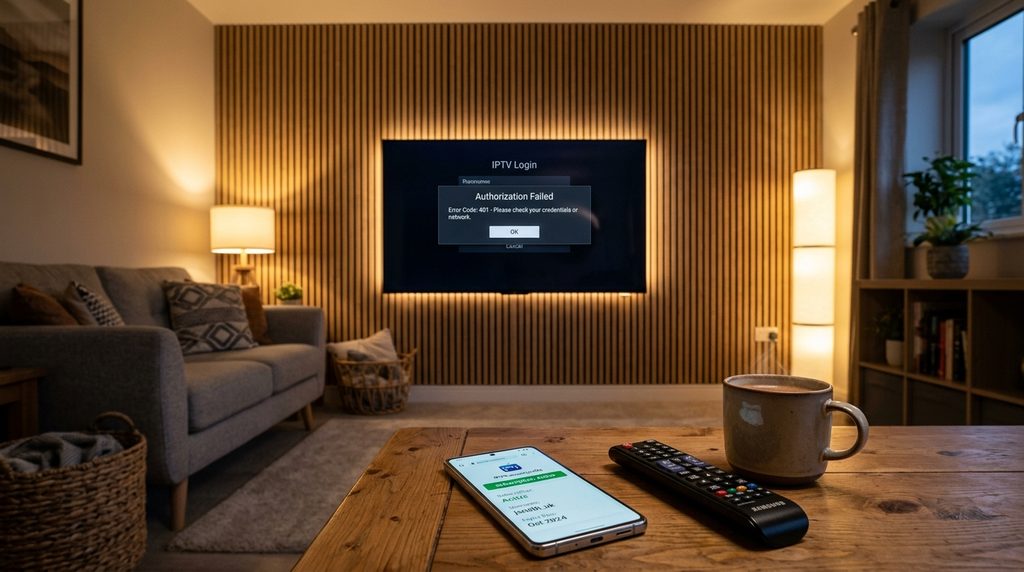
What Causes the “Authorization Failed” Error in IPTV Smarters?
When you click “Add User” in IPTV Smarters Pro or Smarters Player Lite, the application sends an authentication handshake packet to your provider’s database via the Xtream Codes API endpoint.
If your player displays “Authorization Failed”, one of the following communication breakdowns has occurred:
- Typographical Errors: Subtle character typos, unintended capital letters, or invisible spaces copied into the login fields.
- Server URL Formatting Flaws: Missing port numbers, using
https://instead ofhttp://, or adding an accidental trailing slash (/). - ISP DNS Blocking: Internet service providers actively blocking or blackholing IPTV server hostnames.
- App Cache Corruption: Stale authentication tokens stored in the app memory preventing new handshakes.
- Simultaneous Device Limits: Trying to log into a single-connection account while another device is actively streaming.
- Server Downtime or Expired Account: Your provider’s server is undergoing maintenance or your subscription validity date has passed.
6 Proven Ways to Fix IPTV Smarters Authorization Failed
Follow these solutions in order from the simplest fix to advanced network adjustments:
Solution 1: Check for Invisible Trailing Spaces and Case Sensitivity
The single most frequent cause of iptv smarters authorization failed is an accidental space before or after your credentials—especially when copying and pasting from an email or WhatsApp message on mobile screens or Firestick virtual keyboards.
- Inspect Character Case: IPTV passwords are case-sensitive.
Pass123is completely different frompass123. - Remove Trailing Spaces: When auto-filling text on virtual keyboards, smartphones and Firesticks frequently add a blank space at the very end of words. Backspace to verify there is no trailing gap behind your username or password.
- Double-Check Numerical Zeros vs. Letter O: Ensure you haven’t typed the letter
Oinstead of number0, or lowercaselinstead of capitalI.
Solution 2: Fix Server URL Formatting (The Trailing Slash Bug)
IPTV Smarters requires an exact server URL syntax. A single unnecessary forward slash or wrong protocol can disrupt authentication completely.
- Correct Format:
http://server-domain.com:8080
(Replace with your provider’s specific domain and port). - Incorrect Formats That Trigger Errors:
http://server-domain.com:8080/❌ (Do NOT add a trailing slash at the end).server-domain.com:8080❌ (Missing thehttp://prefix).https://server-domain.com:8080❌ (Do not force HTTPS unless your provider explicitly mandates SSL).
If your provider gave you a full M3U URL, review our tutorial on how M3U vs Xtream Codes work to accurately extract your base server address without unnecessary parameters.
Solution 3: Change Your DNS Resolver to Bypass ISP Blocks
Many major internet service providers (ISPs) in the US, UK, and Canada deploy DNS-level filters to block connections to known IPTV streaming portals. When your TV tries to resolve the server’s IP address, the ISP returns a blank or dead response, triggering the iptv smarters authorization failed alert.
Switching your device’s DNS settings to independent public resolvers bypasses this restriction entirely:
- Go to your device’s Network Settings.
- Change your IP/DNS configuration from Automatic (DHCP) to Manual / Static.
- Input the following ultra-fast public DNS addresses:
- Primary DNS:
1.1.1.1(Cloudflare Public DNS) - Secondary DNS:
8.8.8.8(Google Public DNS)
- Primary DNS:
- Save the settings and restart IPTV Smarters.
Solution 4: Clear App Cache and Force Stop IPTV Smarters
Over time, IPTV Smarters caches EPG databases, channel logos, and temporary authentication sessions. If an old session token becomes corrupted, the app will continue throwing authorization errors even if your new credentials are 100% accurate.
On Amazon Firestick:
- Navigate to Settings ➜ Applications ➜ Manage Installed Applications.
- Select IPTV Smarters Pro.
- Click Force Stop.
- Click Clear Cache (Caution: Do NOT click Clear Data unless you are prepared to re-enter all playlist details).
- Relaunch the application and re-attempt the login.
On Android TV / Google TV:
- Go to Settings ➜ Apps ➜ See all apps.
- Choose IPTV Smarters ➜ Click Clear Cache ➜ Force Stop.
Solution 5: Verify Active Concurrent Connections
Most standard IPTV subscriptions allow one active connection at a time.
If family members are currently streaming on a living room TV or bedroom Firestick, logging in on a second device will result in an immediate rejection or authorization timeout.
- Disconnect or exit the IPTV player on other devices in your home.
- Wait 60 seconds for the provider’s server to drop the previous active session.
- Try logging into IPTV Smarters again.
Table of Contents
Solution 6: Re-install the Latest IPTV Smarters Version
Older versions of IPTV Smarters Pro (such as v2.2 or v3.0) possess outdated security certificates that modern IPTV servers reject. If you haven’t updated your player in months:
- Uninstall your current version of IPTV Smarters.
- Follow our updated step-by-step IPTV Smarters Pro setup guide to sideload the latest version with modern Xtream Codes API handshake protocols.
- Test your connection speed using Speedtest by Ookla to verify stable server communication.
Comparison Table: Common Error Messages & Quick Solutions
| Error Screen Message | Primary Cause | Immediate Solution |
|---|---|---|
| Authorization Failed | Bad password, extra spaces, or trailing slash | Strip spaces and check http://domain:port format |
| Invalid Details | Expired account or wrong username | Contact provider to confirm subscription status |
| Server Not Found / Timeout | ISP blocking or incorrect port number | Switch DNS to 1.1.1.1 or toggle a VPN |
| Failed to Fetch Categories | Corrupted app cache or low RAM | Clear app cache and restart streaming device |
For additional playback stuttering and freeze remedies, check our comprehensive walkthrough on how to fix IPTV buffering.
Frequently Asked Questions
Can a VPN fix IPTV Smarters authorization failed?
Yes. If your internet service provider actively throttles or blocks your IPTV provider’s portal URL, enabling a trustworthy VPN encrypts your traffic and connects directly to the server, resolving the authorization block instantly.
Why does my login work on my phone but fails on Firestick?
This is typically caused by virtual keyboard typos on the Firestick or device connection limit restrictions. Make sure you have completely logged out of your phone before attempting to authenticate on your Firestick.
How do I know if my IPTV subscription has expired?
If all login credentials are confirmed accurate and changing your DNS does not resolve the issue, log into your provider’s customer billing dashboard or message their WhatsApp support to verify your account renewal status.
Never Worry About Authorization Errors Again
If your current provider continues dropping servers, suffering authentication blackouts, or delivering unresponsive customer service, it is time to upgrade.
Switch to a seamless VloxTV 4K Premium Streaming Subscription featuring unthrottled global servers, 99.9% uptime, 25,000+ live 4K channels, and instant 24/7 WhatsApp customer setup assistance.