There is nothing quite as disruptive to your viewing experience as watching a fast-paced sports match or movie where the commentators react before a goal is scored, or actors’ lips move seconds after you hear their voices.
Audio desynchronization—commonly known as lip-sync error—is one of the most frustrating technical glitches cord-cutters encounter. The good news is that your television speakers or soundbar are rarely broken. In nearly all instances, learning how to fix iptv audio out of sync comes down to adjusting video decoder clocks, audio delay offsets, or container stream formats.
In this comprehensive 2026 troubleshooting guide, we walk you through the 5 most effective technical fixes on how to fix iptv audio out of sync across Amazon Firestick, Smart TVs, Android boxes, and popular players like TiviMate and IPTV Smarters.
What Causes IPTV Audio and Video to Desync?
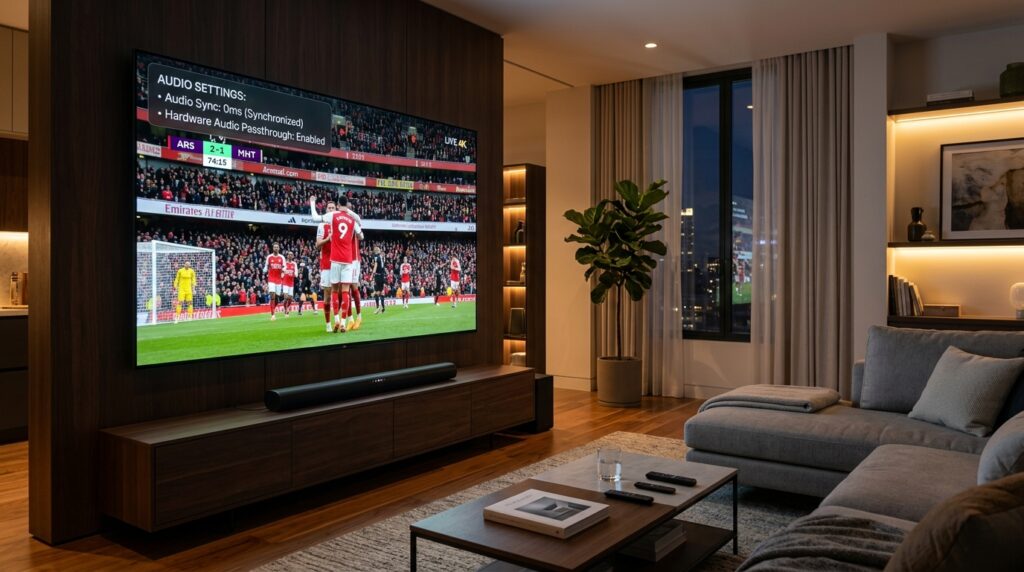
Before diving into the fixes, it helps to understand why video and sound drift apart. An IPTV broadcast transmits separate audio and video data streams packaged inside a container (usually MPEG-TS or HLS). Desync happens when:
- Hardware Processing Bottleneck: Your streaming stick’s processor struggles to render high-bitrate 4K 60fps video frames, causing the picture to lag while lightweight audio packets continue playing in real time.
- Audio Decoder Mismatch: Your television or external soundbar expects stereo PCM, but the IPTV player is outputting raw 5.1 Dolby Digital surround sound without hardware passthrough.
- Bluetooth Audio Latency: Wireless soundbars and headphones inherently introduce 100ms to 250ms of audio transmission lag.
- Server-Side Stream Glitches: Budget providers hosting unoptimized stream relays with inconsistent frame timestamps. Switching to an anti-freeze service like VLOXTV eliminates stream packaging errors permanently.
1. Adjust the Audio Delay Offset in Your Player
The quickest, most direct method for how to fix iptv audio out of sync is using your media player’s built-in millisecond audio offset slider:
In TiviMate IPTV Player:
- While streaming the affected channel, press the Select button on your remote to bring up player controls.
- Click the Audio Settings (Equalizer Icon) at the bottom right.
- Scroll down to Audio delay.
- Adjust the slider:
- If audio is ahead of the video (you hear sound before lips move), move the slider to +100ms, +200ms, or +300ms.
- If audio is lagging behind the video, move the slider to -100ms or -200ms.
- Toggle Apply to all channels if every stream exhibits the same delay.
(If you haven’t unlocked advanced audio controls yet, follow our TiviMate Premium setup guide).
In VLC Media Player:
If you stream on PC, Mac, or Android via VLC Media Player:
- On a keyboard, simply tap J (to delay audio by 50ms) or K (to advance audio by 50ms) until speech aligns perfectly with actors’ lips.
2. Switch Hardware (HW) vs. Software (SW) Video Decoders
Your streaming device uses either dedicated GPU silicon (Hardware Decoder) or CPU software emulation (Software Decoder) to render incoming video frames. A decoder mismatch is the primary reason why 4K 60fps live sports stutter and lose lip sync.
Here is how to fix iptv audio out of sync using decoder settings:
- Open your player’s Settings > Playback (available in TiviMate, IPTV Smarters, and XCIPTV).
- Locate Video Decoder.
- If it is currently set to Hardware (HW), switch it to Hardware+ (HW+) or Software (SW).
- Restart the stream. Software decoding offloads timestamp synchronization to the CPU, immediately snapping audio and video back into alignment.
3. Change Stream Output Format from MPEG-TS to HLS
By default, many IPTV playlists deliver streams packaged in MPEG-TS (.ts) format. While .ts offers rapid channel changing, it lacks modern adaptive bitrate timestamps. If your home internet experiences even a microsecond packet drop, video frames drop while audio continues, producing an immediate desync.
Switching your playlist output to HLS (HTTP Live Streaming / .m3u8) solves this:
- Open your IPTV application settings.
- Select your provider playlist profile.
- Locate Stream Format or Output Format.
- Change from MPEG-TS to HLS.
- Save changes and reload your bouquets. HLS transmits video and audio in synchronized segments, ensuring audio never drifts.
4. Calibrate Firestick and TV Audio Output Settings
If audio desynchronization happens across multiple streaming apps, your streaming hardware audio output requires adjustment:
On Amazon Firestick & Fire TV:
- Go to Settings > Display & Audio > Audio > Surround Sound.
- Change the setting from Best Available to PCM or Stereo. This forces your Firestick to pre-decode surround sound streams into universal stereo before outputting to your TV speakers.
- Go back one screen and select AV Sync Tuning.
- Follow the on-screen ball bounce bouncing test per official Amazon Fire TV audio guidelines to synchronize your TV display with your soundbar.
If your Firestick menus feel sluggish when navigating audio settings, remember to clear cache on Firestick to restore peak system memory.
Table of Contents
5. Upgrade to a Dedicated Anti-Freeze IPTV Provider
If you have tried adjusting audio delay sliders, swapped decoders, switched to HLS, and checked TV settings, but audio still falls out of sync on major live sporting broadcasts, the root issue is server-side transcoding lag.
Low-cost IPTV providers compress broadcast signals on overloaded budget servers. When thousands of subscribers connect during peak NFL or Premier League matches, their encoders drop video frames to save bandwidth, leaving the audio track detached from the picture.
Upgrading to a high-capacity tier like VLOXTV Plans & Pricing provides dedicated 10Gbps stream relays with 60fps hardware synchronization, ensuring pristine picture quality and perfectly synced multi-channel audio. You can also review our guide on how to fix IPTV buffering to optimize overall network bandwidth.
Before concluding setup, always verify your internet latency and bandwidth on Speedtest by Ookla.
Frequently Asked Questions (FAQ)
Why does my IPTV audio delay get progressively worse the longer I watch?
Progressive audio drift is typically caused by local device memory leaks or slight frame rate mismatches (e.g., watching a 50Hz European broadcast on a 60Hz display). Changing your video decoder from Hardware to Hardware+ or power cycling your streaming device immediately resets the synchronization clock.
Why is audio synced on my phone but delayed on my Smart TV?
Smart TVs process video post-enhancements (such as motion smoothing and HDR upscaling) which adds 50ms to 120ms of image processing delay. If audio is output directly to an optical soundbar, sound arrives before the TV finishes rendering the picture. Enabling “Game Mode” on your Smart TV eliminates this processing delay.
Does a VPN fix IPTV audio desync?
A VPN prevents your internet service provider from throttling streaming traffic. If your audio desync is caused by severe ISP packet loss, enabling a fast WireGuard VPN can stabilize data throughput and resolve desync.
Final Thoughts
Learning how to fix iptv audio out of sync transforms frustrating lip-sync delays into a flawless home theater experience. By utilizing player audio delay sliders, switching to HLS format, and locking in hardware audio passthrough, you can enjoy live sports, news, and blockbuster movies with pristine synchronization.
Ready for high-speed 4K streaming with zero audio lag? Visit VLOXTV today, choose your plan, and get instant credentials directly on WhatsApp to start streaming right now!