VLC Media Player is universally recognized as one of the most reliable, lightweight, and versatile open-source media players in the world. Whether you stream on Windows, macOS, Linux, or mobile devices, discovering how to play m3u on vlc gives you a fast and straightforward way to watch live IPTV channels, movies, and sports streams without installing complicated third-party software.
An M3U (or M3U8) file acts as an index playlist that points your player to live streaming servers across the web. When combined with a high-bandwidth, premium high-speed IPTV plan, VLC handles high-definition 4K streams with exceptional stability. In this complete 2026 tutorial, we cover everything you need to know: playing dynamic M3U URLs, loading downloaded local playlist files, and fixing the common “skipping channels” loop.
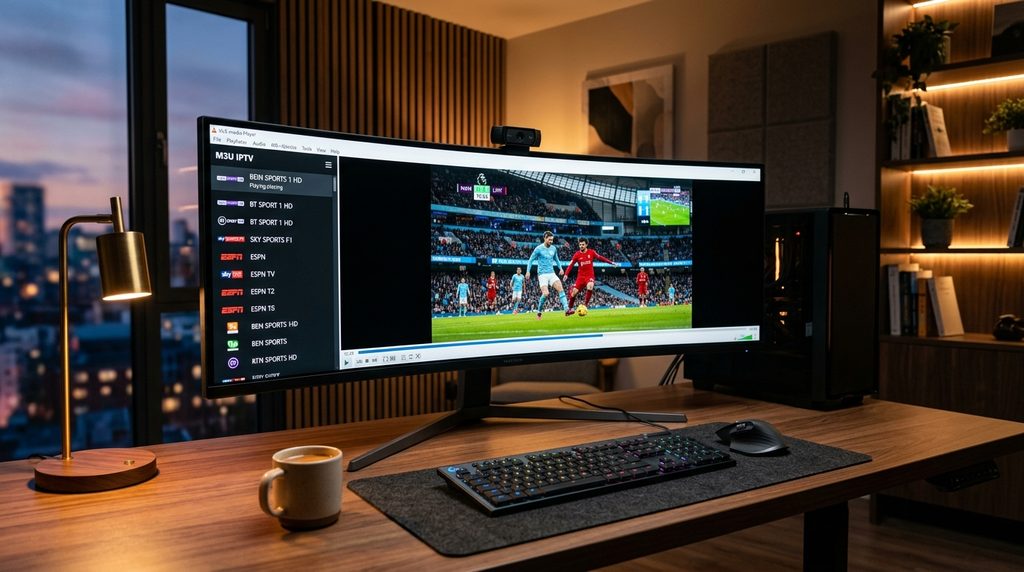
Why Use VLC Media Player for IPTV Streaming?
While dedicated IPTV apps like TiviMate or IPTV Smarters offer TV-centric interfaces, VLC Media Player remains an essential tool for every cord-cutter for several reasons:
- 100% Free and Open Source: Created by VideoLAN, VLC contains zero bloatware, advertisements, or tracking telemetry.
- Universal Codec Compatibility: Plays nearly every video and audio format, including H.264, HEVC (H.265), MPEG-TS, and AAC audio streams out of the box.
- Cross-Platform Synchronization: Available on Windows 10/11, macOS, Linux, Android smartphones, iPads, and iPhones.
- Diagnostic & Testing Power: It is the ultimate benchmark tool to test whether your provider’s M3U stream URL is functioning properly before configuring Smart TVs or streaming sticks.
Prerequisites Before Playing M3U Playlists on VLC
Before you start streaming, ensure you have the following ready:
- The Latest Version of VLC: Download or update your media player directly from the official VideoLAN VLC Download Page to ensure you have the latest streaming codec libraries.
- Your M3U Link or File: You need either an active dynamic M3U link (e.g.,
http://domain.com/get.php?username=...&password=...&type=m3u_plus) or a downloaded.m3u/.m3u8text file from your IPTV provider. - Sufficient Internet Bandwidth: 1080p and 4K live streaming requires a stable connection with at least 25 Mbps download speed. You can verify your connection speed using Speedtest by Ookla.
How to Play M3U on VLC Using a Dynamic Network URL (Method 1 – Recommended)
Using a live Network Stream URL is the best approach because it automatically refreshes your channel list whenever your IPTV service updates its channel lineup or VOD catalog.
Step-by-Step Instructions for Windows & macOS:
- Launch VLC Media Player on your computer.
- Open the Network Stream dialog:
- On Windows: Click on Media in the top menu bar, then select Open Network Stream… (Shortcut:
Ctrl + N). - On Mac: Click on File in the top menu, then select Open Network… (Shortcut:
Cmd + N).
- On Windows: Click on Media in the top menu bar, then select Open Network Stream… (Shortcut:
- In the Network URL box, paste your full M3U playlist link.
- (Optional Optimization) Click Show more options at the bottom of the window:
- Locate the Caching value (default is usually 1000 ms).
- Increase caching to
3000 ms(3 seconds). This gives VLC an extra buffer to prevent micro-stutters during heavy network traffic.
- Click Play (or Open on Mac).
- Wait 5 to 15 seconds while VLC parses the playlist channels. The first channel will begin playing automatically.
How to View and Search Channels in VLC
Once your M3U playlist is loaded, you do not want to flip through thousands of channels one by one. Here is how to easily navigate your channel guide:
- Open the Playlist View:
- Windows Shortcut: Press
Ctrl + L. - Mac Shortcut: Press
Cmd + Shift + Por click View ➜ Playlist.
- Windows Shortcut: Press
- A sidebar will appear listing all available live TV channels and on-demand titles.
- Use the Search bar at the top right of the playlist panel to instantly find specific channels (e.g., type
ESPN,Sky Sports, orHBO). - Double-click any channel to switch to it immediately.
How to Play M3U on VLC from a Downloaded File (Method 2)
If your streaming provider gave you a downloadable .m3u or .m3u8 file rather than a web link:
- Save the
.m3ufile to your computer’s Desktop or Downloads folder. - Open VLC Media Player.
- Simply drag and drop the
.m3ufile directly into the center of the VLC application window. - Alternatively, click Media ➜ Open File… (
Ctrl + O), browse to your downloaded file, and click Open. - Press
Ctrl + L(orCmd + Shift + P) to reveal the complete channel roster.
Table of Contents
How to Play M3U on VLC Mobile (Android, iPhone & iPad)
You can also enjoy live TV on your smartphone or tablet using the mobile version of VLC:
- Download VLC for Android from Google Play Store or VLC for Mobile from the Apple App Store.
- Open the app and grant the required storage permissions.
- Tap on More (three dots) or the Streams tab at the bottom navigation bar.
- Tap the + (New Stream) icon.
- Paste your M3U playlist URL into the input field.
- Tap the Play / Arrow button. Your stream will launch and organize into a mobile swipeable playlist.
How to Fix the Common “VLC Looping / Skipping Channels” Bug
A frequent issue users encounter when mastering how to play m3u on vlc is the “10-second skip loop”: a live channel plays for 5 to 10 seconds, suddenly stops, and VLC jumps to the next channel in the playlist automatically.
Here is how to resolve this problem permanently:
1. Disable the Loop / Toggle Repeat Button
By default, if VLC encounters a momentary dropped packet, its playlist logic assumes the media track ended and advances to the next track.
- Locate the Loop / Repeat button at the bottom playback control bar (two arrows pointing in a circle).
- Click it until it shows No Repeat (grayed out or crossed), or select Repeat One so VLC stays locked onto your current channel.
2. Increase Network Caching (Buffer Size)
- In VLC, go to Tools ➜ Preferences (
Ctrl + P). - At the bottom left under Show settings, select All (Advanced Preferences).
- In the left sidebar, click on Input / Codecs.
- Scroll down on the right pane until you reach the Advanced section.
- Find Network caching (ms) and increase the value from
1000to3000or5000ms (3 to 5 seconds). - Click Save and restart VLC.
- For deeper buffering optimizations across home networks, consult our guide on how to fix IPTV buffering.
3. Change Your DNS Resolver
If your ISP actively filters or resets M3U streaming connections, switch your computer’s DNS to Cloudflare 1.1.1.1 or Google DNS (8.8.8.8). This bypasses local DNS hijacking and dramatically speeds up stream handshakes.
4. Adjust Audio Track & Codec Sync
If you experience sound latency when watching high-bitrate live feeds, check out our dedicated tutorial on how to fix IPTV audio out of sync using VLC’s built-in keyboard audio delay hotkeys (J and K).
Frequently Asked Questions
Is it safe to play M3U playlists on VLC Media Player?
Yes. VLC Media Player is safe, open-source software maintained by VideoLAN. It does not inspect, alter, or transmit your playback data. As long as you obtain your M3U playlist from a trustworthy IPTV service, streaming on VLC is secure.
Can I record live streams while watching M3U on VLC?
Yes. Go to View ➜ check Advanced Controls. A red recording button will appear above your playback controls. Clicking the red button captures the incoming live stream in real time and saves the video file directly to your system’s Videos directory.
Why does my M3U playlist take a long time to load in VLC?
Massive playlists containing over 50,000 channels and VOD titles require significant memory to parse. If your playlist takes more than 30 seconds to load, ask your IPTV provider to filter your M3U output to only include the countries and sports categories you actively watch.
What is the difference between an M3U file and an M3U URL?
An M3U file is a static text document saved on your local hard drive that will not update when new channels are added. An M3U URL is a live web address that pulls the latest channel list and EPG guide dynamically from your provider’s cloud servers every time you launch it.
Final Thoughts
Knowing how to play m3u on vlc turns any computer or mobile device into a powerful 4K media center. With custom network caching, quick playlist navigation, and universal codec support, VLC offers an unbeatable zero-cost platform for all your streaming needs.
Experience seamless, ultra-high-definition streaming today with a premium VloxTV IPTV Subscription, featuring blazing-fast servers, 99.9% uptime, and instant access to top live sports and international channels worldwide.