The Apple TV 4K is widely regarded by tech enthusiasts as the most powerful dedicated streaming device on the market. Powered by Apple’s lightning-fast A-series bionic processors, tvOS delivers butter-smooth menu animations, flawless hardware-accelerated 4K HDR video rendering, and spatial audio support.
However, unlike open-source Android boxes or Firesticks where sideloading is common, Apple operates a strict, walled-garden App Store. Many newcomers wonder whether it is possible to stream live sports and international channels on tvOS, and specifically how to install iptv on apple tv safely and legally.
The answer is an emphatic yes. The official tvOS App Store hosts several world-class IPTV media players designed specifically for Apple TV.
In this comprehensive 2026 guide, we walk you through the exact step-by-step process of how to install iptv on apple tv, review the top 4 tvOS players, and show you how to connect your VLOXTV 4K IPTV subscription for zero-buffer live television.
What You Need Before You Start
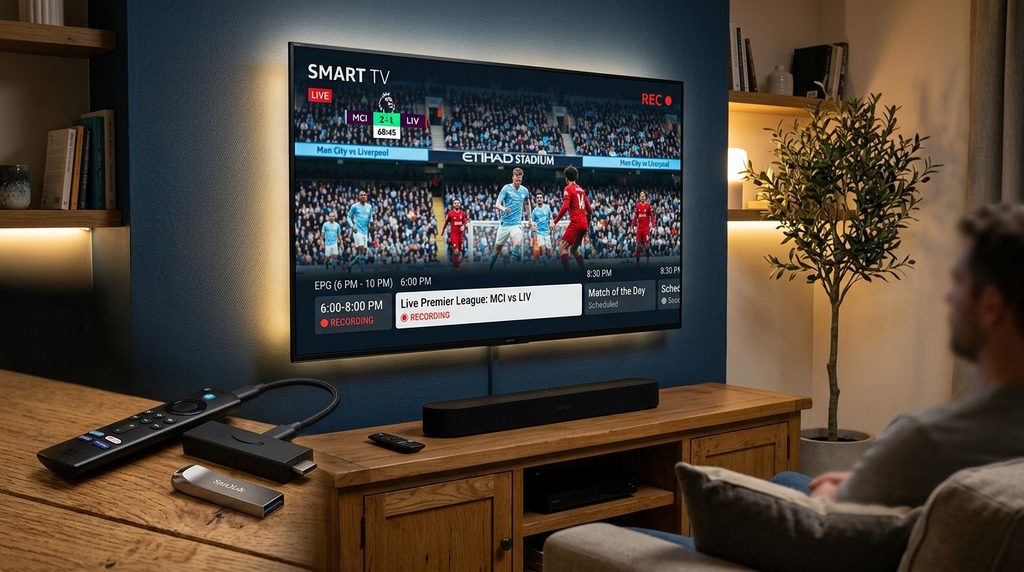
Before diving into the tutorial on how to install iptv on apple tv, ensure you have the following essentials prepared:
- An Apple TV Hardware Device: Apple TV 4K (1st, 2nd, or 3rd Generation) or Apple TV HD running the latest tvOS.
- An Active Apple ID: Needed to download free and premium media players from the official tvOS App Store.
- High-Speed Internet: A stable connection of at least 25–35 Mbps. You can verify your connection speeds on Speedtest by Ookla.
- An Active IPTV Subscription: Reliable login credentials—specifically Xtream Codes API (Server URL, Username, and Password) or an M3U playlist URL—from a verified provider like VLOXTV.
- Apple TV Remote (Siri Remote).
(If you are setting up streaming sticks on other televisions in your home, check out our companion tutorial on how to install IPTV on Firestick).
Table of Contents
The 4 Best IPTV Players for Apple TV (tvOS) in 2026
Because you cannot sideload APK files on tvOS, you must download an approved player from the App Store. Here are the top 4 rated IPTV apps for Apple TV:
1. IPTVX (The Gold Standard for Apple TV)
If you want an interface that rivals Netflix, Apple TV+, and Disney+, IPTVX on the Apple App Store is undisputed king.
- Why it shines: Native tvOS design language, automatic movie trailers, Dolby Vision & HDR10 playback, multi-screen picture-in-picture, and automatic iCloud sync across iPhone, iPad, and Apple TV.
2. IPTV Smarters Pro (Lite)
The worldwide favorite also has a dedicated tvOS client.
- Why it shines: Simple, clean, supports Xtream Codes API login, multi-screen viewing, and reliable live TV guide (EPG) synchronization.
3. GSE Smart IPTV
One of the most versatile and established players across the Apple ecosystem.
- Why it shines: Supports multiple playlist formats, external subtitle tracks, custom EPG time offsets, and robust stream reconnect logic.
4. iPlayTV / Snappier IPTV
A sleek, lightweight player optimized specifically for fast live sports zapping on Apple TV.
- Why it shines: Instant channel switching with zero buffering and seamless multi-channel audio passthrough.
Step-by-Step: How to Install IPTV on Apple TV
Here is the exact method for how to install iptv on apple tv using the App Store:
Step 1: Open the tvOS App Store
- Turn on your Apple TV and navigate to the home screen.
- Click on the blue App Store tile using your Siri Remote.
- If this is your first time using the store, verify that your Apple ID is signed in under Apple TV Settings.
Step 2: Search and Download Your Player
- Navigate to the Search tab (Magnifying Glass) at the top right of the App Store.
- Type IPTVX (or Smarters Player Lite).
- Select the app from the verified search results.
- Click Get (or the Cloud download icon).
- Double-click the side button on your Siri Remote or enter your Apple ID password if prompted to confirm the download.
- Once the installation finishes, click Open.
Step 3: Configure Your VLOXTV Subscription (Xtream Codes API)
Once your player is installed on your Apple TV, you need to connect your live channel bouquet and video-on-demand library.
While players accept both M3U URLs and Xtream Codes API, Xtream Codes API is strongly recommended because it automatically categorizes live sports, synchronizes channel icons, and formats the Electronic Program Guide (EPG).
Follow these quick steps:
- Launch your IPTV player (IPTVX or Smarters) on your Apple TV.
- Select Add Playlist > choose Xtream Codes API.
- Enter your subscription details provided by VLOXTV:
- Playlist Name:
VLOXTV 4K - Server URL: Enter the portal URL (e.g.,
http://server-address.com:8080). - Username: Your assigned subscriber username.
- Password: Your assigned subscriber password.
- Playlist Name:
- Click Next or Login.
- Allow the app 15 to 30 seconds to fetch your bouquets, live sports feeds, and VOD catalog.
- Click Done—your live TV channels and guide are now ready to stream!
Step 4: Optimize Apple TV Settings for Buffer-Free 4K Streaming
The hardware inside the Apple TV 4K is capable of high-bitrate streaming that cheaper streaming dongles cannot touch. To guarantee flawless playback during live NFL, Champions League, NBA, and UFC broadcasts, configure these essential tvOS settings:
1. Enable “Match Dynamic Range” and “Match Frame Rate”
This setting ensures your television matches the broadcast’s native refresh rate (e.g., 50fps for European football or 60fps for US sports):
- Go to Settings > Video and Audio > Match Content.
- Turn Match Dynamic Range to ON.
- Turn Match Frame Rate to ON.
2. Connect via Gigabit Ethernet
If your Apple TV model features an Ethernet port, connect an RJ45 Cat6 cable directly from your router. Hardwiring eliminates Wi-Fi packet drops, lowering video latency to near zero. If using wireless, always connect to your router’s 5GHz band. For extra troubleshooting, read our guide on how to fix IPTV buffering.
3. Adjust Internal Player Buffer in IPTVX
Inside the IPTVX player settings:
- Open Settings > Player Engine.
- Set Buffer Size to Large. This pre-loads video segments into your Apple TV RAM, smoothing out minor bandwidth dips.
Frequently Asked Questions (FAQ)
Is it legal to learn how to install IPTV on Apple TV?
Yes, 100%. All media players available in the official tvOS App Store (such as IPTVX, Smarters, and GSE) are thoroughly vetted and approved by Apple’s strict App Store review guidelines. They function as media players, exactly like VLC or Plex. Legality depends on having an active, licensed subscription from a reputable provider like VLOXTV.
Can I stream IPTV from my iPhone to Apple TV using AirPlay?
Yes. If you prefer keeping your playlist on your iPhone or iPad, you can open your stream on mobile and tap the AirPlay icon to beam the live broadcast directly to your Apple TV screen in Full HD or 4K.
Why do some IPTV apps cost money on Apple TV?
Unlike Android apps which frequently rely on intrusive banner ads, tvOS developers charge a modest one-time fee or subscription for premium UI features like iCloud sync, Dolby Atmos passthrough, and custom EPG formatting. Free players like Smarters Player Lite are also available.
What should I do if channels freeze on Apple TV?
First, verify your internet speed. If your connection is above 30 Mbps, restart your Apple TV by going to Settings > System > Restart. If freezing continues on specific live sporting events, your provider’s servers may be overcrowded. Upgrading to a premium anti-freeze provider like VLOXTV with dedicated 10Gbps relay servers resolves prime-time freezing permanently.
Final Thoughts
Completing how to install iptv on apple tv transforms your Apple TV 4K into the ultimate high-end entertainment powerhouse. With unmatched processing power, premium tvOS interfaces like IPTVX, and pristine 4K 60fps playback, you get a television viewing experience that far surpasses traditional cable boxes.
Ready to pair your Apple TV with premium 4K channels and dedicated US sports servers? Visit VLOXTV today, choose your plan, and get your instant login credentials directly on WhatsApp to start streaming right now!