Streaming live sports, 4K movies, and high-bitrate international television on an Amazon Fire TV Stick delivers an unbeatable cord-cutting experience. However, even the most expensive Wi-Fi 6 routers can suffer from sudden signal drops, wall interference, and network congestion caused by household smartphones and smart home devices. Deciding to connect ethernet to firestick is the single most effective hardware upgrade you can make to permanently eliminate stuttering, reduce latency, and stabilize your home media center.
While the Amazon Firestick does not include a built-in RJ45 network port on its chassis, adding a dedicated wired connection takes less than two minutes using an inexpensive plug-and-play adapter. When paired with a reliable premium high-speed IPTV plan, a hardwired Ethernet connection ensures instantaneous channel zapping and zero mid-game buffering spinners.
In this definitive 2026 tutorial, we explain step-by-step how to connect ethernet to firestick, compare the official Amazon adapter against gigabit OTG alternatives, and share speed verification benchmarks.
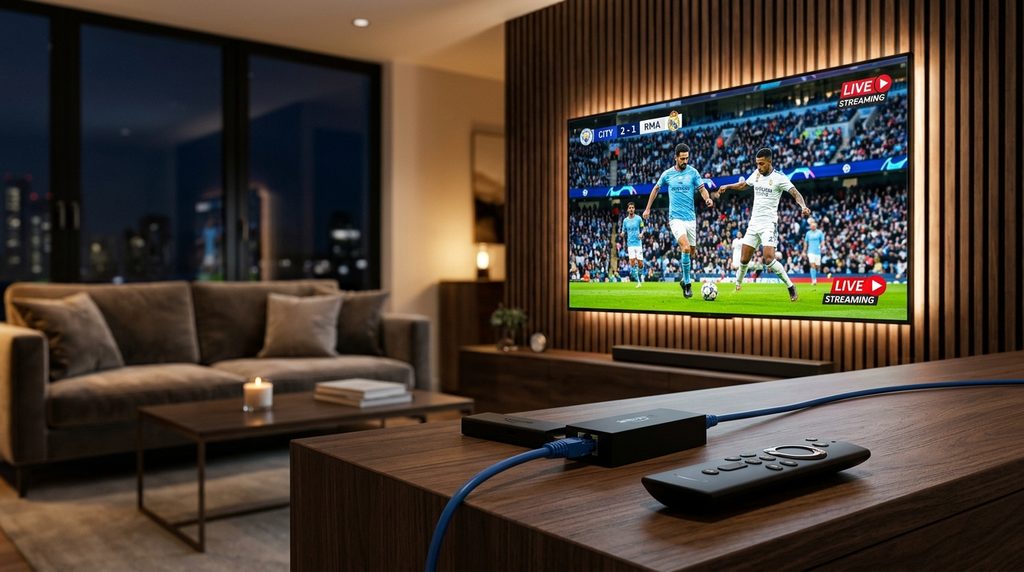
Why Connect Ethernet to Firestick for 4K Streaming?
Wireless connections are convenient, but they are inherently subject to radiofrequency jitter and environmental packet loss. Here is why you should connect ethernet to firestick:
- Rock-Solid Bandwidth Stability: Unlike Wi-Fi signals that fluctuate when family members browse on phones or download files, Ethernet delivers constant, uninterrupted throughput.
- Minimal Ping & Jitter: Essential for live broadcasts like NFL, Premier League, and UFC PPVs where micro-delays cause audio de-sync or visual stutter.
- Immunity to Physical Obstacles: Eliminates dead zones caused by thick walls, metal appliances, or placing your TV across multiple rooms from your home router.
- Amazon Certified Compatibility: Fully supported across Fire TV Stick Lite, Firestick 4K, 4K Max, and Fire TV Cube as outlined in Amazon Fire TV Device Support.
Table of Contents
What You Need to Connect Ethernet to Firestick
Before beginning the physical connection process, gather the following hardware accessories:
- An Amazon Fire TV Stick: Any modern model running Fire OS (Fire TV Stick Lite, Standard, 4K, 4K Max).
- An Ethernet Adapter: Either the official Amazon Ethernet Adapter for Fire TV (10/100 Mbps) or a high-speed Gigabit USB 3.0 OTG Ethernet Hub.
- A Cat6 or Cat5e Ethernet Cable: Running from your home internet router, switch, or powerline adapter directly to your television.
- The Original Amazon Power Adapter: Always use the dedicated wall power plug included with your Firestick, as TV USB ports do not provide sufficient electrical amperage to power both the stick and an external network card.
How to Connect Ethernet to Firestick: Step-by-Step Setup
Follow these straightforward wiring steps to connect ethernet to firestick properly:
[Wall Outlet] ──────> (Micro-USB Power Cable) ──┐
                                                 ▼
[Internet Router] ──> (Cat6 Ethernet Cable) ───> [Ethernet Adapter] ───> [Fire TV Stick] ───> [TV HDMI Port]
Step 1: Disconnect the Power Cable
Unplug the existing micro-USB power cord from the side of your Amazon Firestick.
Step 2: Attach the Ethernet Adapter to the Firestick
Take your Ethernet adapter and insert its micro-USB connector directly into the power port on your Fire TV Stick.
Step 3: Connect Your Cat6 LAN Cable
Plug your hardwired Ethernet cable into the RJ45 network port on the adapter until you hear a firm click. Ensure the other end is plugged into an active LAN port on your router.
Step 4: Reconnect the Wall Power Supply
Plug your original Amazon power cable into the female micro-USB input on the adapter, and plug the power brick into a wall electrical outlet.
Step 5: Power On Your Television
Switch your television to the correct HDMI input. Your Fire TV Stick will boot up normally. There are no drivers or manual software installs required—Fire OS automatically detects the wired interface and routes all streaming traffic through Ethernet.
Official Adapter vs Gigabit USB Hub: Which to Connect Ethernet to Firestick?
When preparing to connect ethernet to firestick, you have two primary adapter styles to consider:
| Feature / Metric | Official Amazon Adapter | Gigabit OTG USB Ethernet Hub |
|---|---|---|
| Maximum Port Speed | 100 Mbps (Fast Ethernet) | Up to 300–480 Mbps (USB 2.0 capped) |
| USB Expansion Ports | None (Single LAN port) | 3x USB ports (For flash drives/storage) |
| Setup Simplicity | 100% Plug & Play | Plug & Play with OTG cable |
| Price Range | $14.99 – $19.99 | $16.99 – $22.99 |
| Best Suited For | Standard 4K streaming (25–50 Mbps) | Power users adding external storage & gigabit LAN |
Tech Tip: While 100 Mbps on the official adapter might sound slower than theoretical Wi-Fi speeds, 4K UHD streaming only requires 25 to 35 Mbps. A continuous, jitter-free 100 Mbps wired line is vastly superior to a fluctuating 300 Mbps Wi-Fi connection.
How to Verify and Test Ethernet Speed on Firestick
After you connect ethernet to firestick, verify that your device has successfully switched from Wi-Fi to a wired connection:
1. Check Network Status in Settings
- On your Firestick home screen, navigate to Settings (gear icon) ➜ Network.
- If the connection is successful, your active network will show Wired (Connected).
- Press the Play/Pause button on your remote to view network details. You will see your assigned IP address and subnets.
2. Run a Real-Time Speed Test
To measure your actual internet throughput:
- Open the Silk Browser or the Downloader utility on your Firestick. (If you need to configure streaming apps, consult our guide on how to install IPTV on Firestick).
- Navigate to Speedtest by Ookla or
fast.com. - Run the speed benchmark. You should see a steady download rate between 85 Mbps and 95 Mbps with a low ping (under 20 ms).
3. Change DNS for Extra Speed
To avoid ISP throttling during peak hours, configure high-performance public resolvers like Cloudflare 1.1.1.1 or Google DNS (8.8.8.8) in your router or Firestick network settings. For deeper playback fixes, review our guide on how to fix IPTV buffering.
Frequently Asked Questions
Can I connect ethernet to firestick without an adapter?
No. Because the Amazon Firestick chassis is ultra-compact, it does not possess a built-in Ethernet port. You must use an external micro-USB Ethernet adapter or an OTG cable connected to a USB network dongle.
Why is my Firestick Ethernet adapter only getting 90 Mbps?
The official Amazon Ethernet adapter uses a 10/100 Mbps network controller, which yields roughly 90 to 95 Mbps real-world throughput due to network protocol overhead. This is more than triple the bandwidth required for seamless 4K HDR live sports streaming.
Does Ethernet stop IPTV buffering on Firestick?
Yes, in the vast majority of cases. If your buffering was caused by local Wi-Fi channel interference, signal degradation through walls, or wireless packet drops, switching to Ethernet resolves the issue immediately.
Experience Flawless 4K Streaming Today
Choosing to connect ethernet to firestick creates the ultimate bulletproof foundation for your home entertainment. With zero signal dropouts, low latency, and lightning-fast channel loading, your Firestick becomes a true high-performance media hub.
Upgrade your streaming experience today with an unthrottled VloxTV 4K Premium IPTV Subscription featuring over 25,000 live channels, dedicated sports servers, and instant 24/7 WhatsApp assistance.