LG Smart TVs are among the most celebrated displays in the world. Equipped with self-lit OLED pixels, deep infinite contrast, and the intuitive webOS interface powered by the LG Magic Remote, they offer the ultimate platform for watching live sports, blockbuster films, and international television.
However, because LG TVs run on proprietary webOS rather than the open Android TV operating system, you cannot simply download APK files or use Android sideloading tools. Many viewers mistakenly believe they need an external streaming stick to watch live channels.
Fortunately, that is not the case. The official LG Content Store hosts several high-performance, dedicated IPTV media players that you can install in under two minutes without buying extra hardware.
In this beginner-friendly 2026 tutorial, we show you exactly how to install iptv on lg smart tv, review the top-rated webOS players, and guide you through connecting your VLOXTV 4K IPTV subscription for buffer-free live sports.
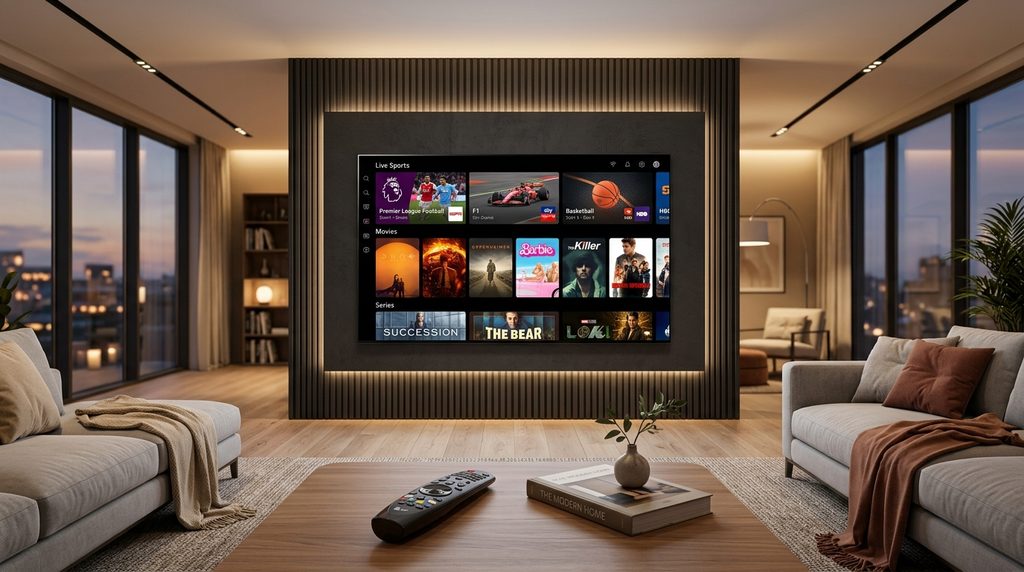
What You Need Before You Start
Before diving into how to install iptv on lg smart tv, make sure you have the following ready:
- A Compatible LG Smart TV: Any LG TV model running webOS 3.0 or newer (manufactured from 2017 to 2026).
- Stable Internet Connection: A minimum of 25–30 Mbps download speed for 4K and Full HD 60fps streaming. Test your real speeds on Speedtest by Ookla. Connect via an Ethernet cable or 5GHz Wi-Fi whenever possible.
- An Active IPTV Subscription: Your login credentials (Xtream Codes API server URL, username, and password) from a verified provider like VLOXTV.
- Your LG Magic Remote: For quick typing and pointer navigation.
(If you also have a Samsung display in another room, check our companion tutorial on how to set up IPTV on Smart TV).
Table of Contents
The 3 Best IPTV Apps for LG Smart TV (webOS) in 2026
All of the following players are vetted, verified, and hosted directly inside the official LG Content Store:
1. IBO Player (Top Recommended for LG webOS)
IBO Player is widely considered the fastest, smoothest IPTV player on LG webOS.
- Why it’s great: Blazing-fast channel zapping, sleek dark mode dashboard, full 4K 60fps video acceleration, and an effortless web portal activation method using your TV’s MAC address.
2. IPTV Smarters Pro
The most recognized player across all platforms also features a dedicated webOS app.
- Why it’s great: Direct on-screen Xtream Codes API login, multi-screen viewing (watch up to 4 games at once), and comprehensive EPG TV guide integration.
3. Nanomid Player / Smart IPTV (SIPTV)
Lightweight, dependable alternatives that have supported LG televisions for years.
- Why it’s great: Minimalist interfaces designed for users who want a pure, simple channel guide without complex menus.
Step-by-Step: How to Install IPTV on LG Smart TV
Here is the exact step-by-step walkthrough for how to install iptv on lg smart tv using the LG Content Store:
Step 1: Open the LG Content Store / Apps
- Turn on your LG TV and press the Home button on your LG Magic Remote.
- Scroll along the webOS bottom launcher bar and click on Apps (or LG Content Store on older webOS versions).
Step 2: Search and Install Your Player
- Click the Search icon (Magnifying Glass) in the top-right corner.
- Type IBO Player (or IPTV Smarters) using the on-screen keyboard.
- Select the app from the verified search results.
- Click the Install button. The app will download and install in seconds.
- Once the installation completes, click Launch to open the app on your TV.
Step 3: Connect Your VLOXTV Subscription Credentials
Once your chosen player is open on your LG display, connecting your channel playlist takes less than two minutes:
Method A: Web Portal Activation (IBO Player Method)
When you launch IBO Player on your LG TV, the screen will present two unique identifiers:
- Device MAC Address: (e.g.,
00:1a:79:xx:xx:xx) - Device Key: (a private 6-digit PIN)
Follow these simple steps:
- Open a web browser on your phone, tablet, or laptop and visit the IBO Player official portal.
- Enter your Device MAC Address and Device Key shown on your LG screen, then click Login.
- Click Add Playlist (or Add XC Playlist).
- Enter your subscription details provided by VLOXTV:
- Playlist Name:
VLOXTV 4K - Server URL: Your assigned portal URL (e.g.,
http://server-address.com:8080). - Username: Your account username.
- Password: Your account password.
- Playlist Name:
- Click Save.
- Return to your LG TV, press the back button or select Reload / Refresh. All your live sports channels, international bouquets, and 4K movie libraries will load instantly!
Method B: Direct Xtream Codes Login (IPTV Smarters Method)
If you prefer logging in directly on your LG TV using your remote:
- Open IPTV Smarters on your LG TV.
- Select Login with Xtream Codes API.
- Enter your assigned VLOXTV username, password, and server URL.
- Click Add User to synchronize your channels and EPG guide.
Step 4: Optimize LG TV Settings for Buffer-Free 4K Streaming
LG OLED and NanoCell displays boast high refresh rates and powerful video processing chips. To ensure smooth, stutter-free playback during live NFL, Premier League, NBA, and UFC broadcasts, configure these essential settings:
1. Connect via Wired Ethernet or 5GHz Wi-Fi
While convenient, standard 2.4GHz Wi-Fi often encounters local interference from household appliances. Connect an RJ45 Ethernet cable directly into your LG TV LAN port, or connect to your router’s 5GHz wireless band for jitter-free throughput. For extra tips, read our guide on how to fix IPTV buffering.
2. Disable “Quick Start+” for a Fresh Memory Reboot
LG’s Quick Start+ feature keeps apps suspended in standby mode when you turn off the TV, which can cause memory bloat over time:
- Go to Settings > General > Additional Settings > Quick Start+.
- Toggle Quick Start+ to OFF.
- Turning your TV off and on will now perform a clean system reboot, freeing up RAM for your media player.
3. Switch Hardware Decoder Setting
Inside IBO Player or IPTV Smarters settings, ensure your Video Decoder is set to Hardware (HW). This offloads video rendering directly to the LG Alpha 9/Alpha 11 AI processor, ensuring smooth 60fps playback without dropped frames.
Frequently Asked Questions (FAQ)
Is it legal to learn how to install IPTV on LG Smart TV?
Yes, absolutely. Apps like IBO Player and IPTV Smarters are officially approved and distributed directly through the LG Content Store. They function strictly as media player engines, identical to VLC or Plex. Legality depends on having an active, licensed subscription from a reputable provider like VLOXTV.
Do I need to buy a Firestick if I already have an LG Smart TV?
In almost all cases, no. LG webOS offers top-tier apps like IBO Player that stream 4K live TV and movies natively without extra dongles, cables, or additional remotes.
Why does my playlist say “Check URL” or “Authentication Error” on LG TV?
This error usually indicates a mistyped server address, an extra space at the end of your username, or an expired subscription. Double-check your login details, or reach out to your VLOXTV WhatsApp support agent for instant credential verification.
Final Thoughts
Mastering how to install iptv on lg smart tv unlocks the full cinematic potential of your television. With vibrant 4K OLED HDR visuals, intuitive Magic Remote navigation, and instantaneous channel switching, you get a premium home entertainment experience that blows traditional cable out of the water.
Ready to pair your LG Smart TV with 10,000+ live 4K channels and dedicated US sports servers? Visit VLOXTV today, choose your plan, and get your instant login credentials directly on WhatsApp to start streaming right now!