Roku streaming sticks and Roku TVs (TCL, Hisense, Philips) dominate the North American streaming landscape thanks to their lightning-fast interface and intuitive remote controls. However, Roku’s proprietary closed operating system (Roku OS) notoriously restricts direct sideloading of third-party Android APKs. If you search for traditional apps like IPTV Smarters or TiviMate in the official Roku Channel Store, you won’t find them.
So, does this mean Roku users are locked out of live international channels, sports, and on-demand movies? Not at all.
The most reliable, zero-lag workaround is learning how to cast iptv to roku directly from your iPhone, iPad, or Android smartphone. In this 2026 updated step-by-step tutorial, you will discover the easiest methods on how to cast iptv to roku to stream full 4K and FHD playlists in under five minutes.
Prerequisites: Prepare Your Roku for Wireless Casting
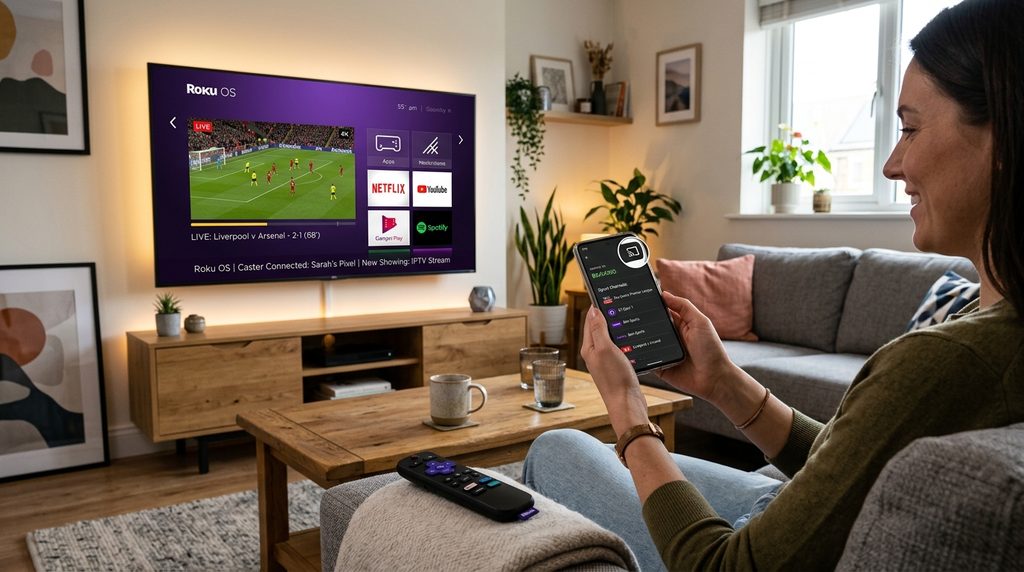
Before learning how to cast iptv to roku or mirror your phone screen, you must verify that your Roku device is configured to accept incoming wireless transmissions.
- Turn on your Roku device and navigate to Settings > System > Screen Mirroring.
- Set Screen Mirroring Mode to either Prompt or Always Allow.
- For Apple device owners:
- Go to Settings > Apple AirPlay and HomeKit.
- Make sure AirPlay is toggled to ON.
- Set Require Code to First Time Only.
- Check that your smartphone and your Roku device are connected to the exact same Wi-Fi network. If one is on a 2.4 GHz band and the other is on 5 GHz, casting will fail.
For troubleshooting native connectivity issues, consult the official Roku screen mirroring instructions.
Method 1: How to Cast IPTV to Roku Using Web Video Caster (Android & iOS)
The single best application for how to cast iptv to roku with M3U URLs and Xtream Codes is Web Video Caster (WVC). Unlike basic screen mirroring—which drains your phone battery and displays phone notifications on your television—Web Video Caster extracts the direct video stream and instructs your Roku device to play it natively. Your phone acts merely as a remote control!
Step 1: Install the Web Video Caster Receiver on Roku
- On your Roku home screen, open Streaming Channels (Search Channels).
- Search for Web Video Caster – Receiver.
- Click Add Channel to install the free receiver app on your Roku.
Step 2: Install the App on Your Mobile Device
- If you use Android, download the app via Web Video Caster on Google Play.
- If you use iPhone or iPad, download Web Video Cast from the iOS App Store, or learn more on the Web Video Caster official platform.
Step 3: Connect and Play Your IPTV Playlist
- Open the Web Video Caster app on your phone.
- Tap the Cast icon (screen with waves) in the top-right corner.
- Select Roku from the discovered devices list and tap your Roku TV.
- Tap the Menu icon (☰) on the left and select IPTV.
- Tap the + (Plus icon) to add your playlist:
- Paste your M3U URL provided by your service, or enter your Xtream Codes credentials.
- Browse your live channels, categories, or movies. Tap on any channel and select Play.
- The video will instantly start streaming in crisp high definition on your Roku TV! You can turn off your phone screen or answer incoming phone calls without interrupting playback.
Method 2: How to Cast IPTV to Roku from iPhone via Apple AirPlay 2
If you own an iPhone and your Roku was manufactured after 2018, your Roku device has native Apple AirPlay 2 built into Roku OS, making how to cast iptv to roku effortless for Apple users.
Compatible Apps for AirPlay:
You can use popular iOS IPTV players such as IPTV Smarters Pro, GSE Smart IPTV, or Smarters Player Lite.
Step-by-Step Instructions:
- Open your preferred IPTV application on your iPhone or iPad.
- Load your playlist credentials from your VLOXTV multi-device compatible IPTV subscription.
- Start playing your desired live sports stream or movie.
- Tap the screen to reveal playback controls, then tap the AirPlay icon (a rectangle with a triangle at the bottom).
- Select your Roku TV or Roku Streaming Stick from the device pop-up.
- If this is your first time connecting, a 4-digit code will appear on your Roku TV. Enter this code into your iPhone prompt.
Your iPhone will immediately stream the channel with full sound to your Roku display. If you encounter any pairing errors, review the Apple official AirPlay streaming guide for iOS network permissions.
Table of Contents
Method 3: Screen Mirroring from Android (Smart View / Quick Cast)
If your Android smartphone is made by Samsung, Google Pixel, Xiaomi, or Motorola, you can mirror your entire screen to Roku without installing additional receiver apps.
- Open your Android Quick Settings panel by swiping down from the top of your screen twice.
- Tap the icon labeled Smart View, Cast, or Screen Mirroring.
- Select your Roku device from the scan list.
- Accept the permission prompt on your TV screen using your Roku remote.
- Once your phone screen appears on the TV, launch your favorite IPTV player (such as TiviMate, XCIPTV, or Smarters), rotate your phone into landscape mode, and enjoy full-screen live television.
How to Prevent Stuttering and Buffering When Casting to Roku
Because casting involves data traveling across your local router, wireless packet loss can occasionally lead to stutter. Here are practical optimization tips:
- Connect to 5 GHz Wi-Fi: Ensure your Roku and your smartphone are connected to your router’s 5 GHz Wi-Fi frequency rather than 2.4 GHz to minimize interference.
- Turn Off Battery Optimization: On Android devices, go to Settings > Battery > App Battery Usage > Web Video Caster and set it to Unrestricted so the OS doesn’t kill background streaming.
- Inspect Network Latency: If you notice occasional freezing during major live sporting matches, review our proven techniques to eliminate IPTV buffering to optimize DNS settings and cache allocations.
Roku Casting Comparison Table
| Casting Method | Supported Devices | Native Roku App Needed? | Allows Phone Sleep? | Video Quality |
|---|---|---|---|---|
| Web Video Caster | Android & iOS | Yes (WVC Receiver) | Yes (Zero Drain) | Up to 4K Ultra HD |
| Apple AirPlay 2 | iPhone, iPad, Mac | No (Built into Roku OS) | Yes | 1080p / 4K UHD |
| Android Smart View | Samsung & Android | No | No (Screen Mirror) | 1080p FHD |
Frequently Asked Questions (FAQ)
Can I install IPTV Smarters Pro directly onto a Roku TV?
No. Roku OS does not support Android APK installation or the Google Play Store. The safest and most reliable way to use IPTV Smarters on Roku is by playing the stream on your smartphone and casting it via AirPlay or Web Video Caster.
Does casting IPTV drain my smartphone’s battery quickly?
When using Web Video Caster, battery consumption is negligible (less than 3% per hour) because the app passes the stream URL directly to the Roku hardware rather than encoding your display screen. Standard screen mirroring (Method 3), however, uses more battery since your phone screen remains active.
Why is my Roku not showing up when I search for casting devices?
Make sure both your smartphone and Roku device are connected to the exact same Wi-Fi SSID. Also, check your router settings to ensure AP Isolation (Client Isolation) is turned off, as AP isolation prevents wireless devices on the same router from communicating with each other.
Can I control channel switching with my Roku remote?
When using the Web Video Caster receiver channel on Roku, you can use the Roku remote to pause, play, rewind, and adjust volume. To switch between live TV channels, you select the channel from your smartphone playlist.
Final Thoughts
Now that you know how to cast iptv to roku from both iPhone and Android, you don’t need to buy an extra streaming box just to enjoy live television on Roku OS. Whether you use Web Video Caster for zero-battery-drain native playback or Apple AirPlay 2 for instant mirroring, your Roku TV is ready for thousands of live sports and movie channels.
Looking for stable, high-speed IPTV streaming optimized for all your devices including Roku, Smart TV, Firestick, and mobile? Explore VLOXTV Multi-Device Subscription Plans with instant 24/7 activation and friendly live support on WhatsApp!